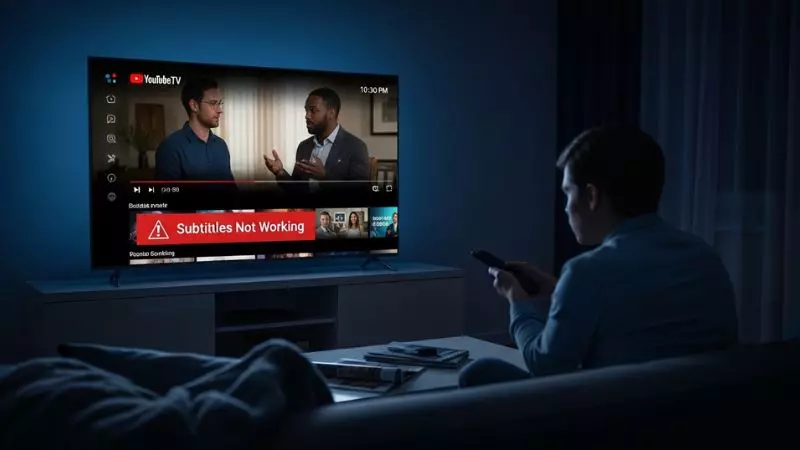
If Subtitles Not Working YouTube TV is frustrating you, you are not alone. Many users face issues like closed captions not showing, YouTube TV subtitles out of sync, or captions suddenly disappearing during streaming.
This problem can affect your viewing experience, especially when watching live TV, movies, or shows that rely on accurate captioning. Understanding why YouTube TV captions are not working is the first step toward fixing it quickly.
In this guide, we will explore the common reasons behind YouTube TV subtitle issues, including caption settings errors, device compatibility problems, and streaming glitches.
Whether your YouTube TV closed captions are not turning on or subtitles are delayed, you will find simple and effective solutions here. Stay tuned to learn how to fix YouTube TV subtitle problems and enjoy seamless streaming again.
Subtitles Not Working YouTube TV

If subtitles are not working on YouTube TV, it usually points to a simple setting issue or a temporary streaming glitch. Many users face problems like subtitles not appearing, delayed captions, or captions not syncing with video. As a viewer, you should first understand that YouTube TV subtitles depend on both app settings and device compatibility.
To fix this issue effectively, start with the basics and move step by step like a pro.
Common reasons behind subtitle issues
- Subtitles are turned off in YouTube TV settings
- Poor internet connection causing subtitle delay
- App cache or temporary glitch in streaming
- Unsupported device or outdated app version
- Specific channel or program not supporting captions
Quick fixes you should try
- Turn captions off and on again
- Restart your YouTube TV app or device
- Update the YouTube TV app to the latest version
- Check subtitle settings from your device settings
- Switch to another channel and come back
| Issue Type | Possible Cause | Recommended Fix |
| Subtitles not showing | Disabled captions | Enable captions in settings |
| Delayed subtitles | Slow internet | Improve connection speed |
| Missing on some videos | Content limitation | Try another program |
Captions Not Working on YouTube TV
When captions are not working on YouTube TV, it can be frustrating, especially during live streaming. This issue often happens due to incorrect caption settings, outdated software, or temporary bugs in the app. Understanding how captions function will help you solve the problem faster.
Think of captions as a feature controlled by both YouTube TV and your device. If one fails, captions may stop working.
Key causes of caption problems
- Captions disabled at account level
- Device-level caption settings overriding app settings
- Temporary server-side issues
- Bugs after recent app updates
What you should do immediately
- Check YouTube TV caption settings carefully
- Enable captions from your TV or mobile device settings
- Log out and log back into your account
- Reinstall the YouTube TV app if needed
| Problem | Why It Happens | Best Solution |
| Captions not turning on | Settings disabled | Enable from app and device |
| Captions disappear | App glitch | Restart or reinstall app |
| Captions not syncing | Streaming lag | Refresh video or change quality |
Why Is Closed Captions Not Working on YouTube TV
If you are wondering why closed captions are not working on YouTube TV, the answer usually lies in technical conflicts or content limitations. Closed captions depend on the broadcaster, so not every video or live channel supports them properly.
As a guide, always check whether the issue is global or specific to one channel.
👉 “For complete guide check this article”
Main reasons for closed caption failure
- The channel does not support closed captions
- YouTube TV server delay during live streaming
- Device compatibility issues
- Incorrect language or subtitle format selected
Step by step solution approach
- Change subtitle language settings
- Test captions on multiple channels
- Restart your internet router
- Use a different device to confirm the issue
| Scenario | Explanation | Fix |
| No captions on live TV | Channel limitation | Switch channel |
| Captions in wrong language | Language setting issue | Change subtitle language |
| Captions missing completely | System glitch | Restart app and device |
Why Are Captions Not Working on YouTube TV
Many users ask why captions are not working on YouTube TV even after enabling them. The answer often comes down to hidden settings or minor technical bugs that are easy to fix once identified.
As a teacher-style tip, always follow a troubleshooting flow instead of random fixes. This saves time and improves results.
Hidden issues you might miss
- Background app processes interfering with playback
- Outdated smart TV firmware
- Browser issues if using YouTube TV on desktop
- Incorrect playback settings
Advanced fixes for better results
- Clear app cache and data
- Update your device firmware
- Try using YouTube TV in a different browser
- Reset YouTube TV settings to default
| Problem Area | Root Cause | Smart Fix |
| App not responding | Cache overload | Clear cache |
| Captions not loading | Software outdated | Update device/app |
| Desktop caption issue | Browser conflict | Switch browser |
By following these proven and latest solutions, you can easily fix subtitle and caption issues on YouTube TV. Focus on checking settings, updating your device, and testing different content to identify the exact problem quickly.
Subtitles Not Working YouTube TV Reddit

If you search subtitles not working YouTube TV Reddit, you will notice that many users report similar problems like captions not showing, delay issues, or subtitles disappearing during live streaming. These real user experiences highlight common technical glitches rather than rare issues.
From community discussions, the most reported causes are app bugs, device conflicts, and temporary server-side problems.
What Reddit users commonly report
- Subtitles randomly turning off during live TV
- Captions not available on specific channels
- Delay between audio and subtitles
- Issues after recent YouTube TV updates
Solutions based on real user experiences
- Restart the streaming device completely
- Sign out and sign back into YouTube TV
- Update the app and device firmware
- Turn captions on from both app and device settings
| Reddit Issue Insight | Actual Problem | Practical Fix |
| Subtitles disappear | App glitch | Restart app/device |
| Not working on live TV | Channel limitation | Try another channel |
| Delay in captions | Internet lag | Improve connection speed |
Subtitles Not Working YouTube TV Samsung TV
If subtitles not working YouTube TV Samsung TV is your issue, the problem is often related to Samsung Smart TV settings or outdated firmware. Samsung TVs have their own caption system that can override YouTube TV settings.
As a guide, you should always sync both device and app settings.
Common causes on Samsung TVs
- Captions disabled in TV accessibility settings
- Outdated Samsung Smart Hub software
- Conflicts between TV and YouTube TV caption settings
- Temporary app bugs
Step by step fix for Samsung TV
- Go to Settings > Accessibility > Caption Settings and enable captions
- Open YouTube TV and turn captions on again
- Update your Samsung TV software
- Reinstall the YouTube TV app
| Samsung TV Issue | Reason | Solution |
| Captions not appearing | Disabled in TV settings | Enable in accessibility menu |
| Not syncing properly | Software outdated | Update TV firmware |
| Captions missing | App conflict | Reinstall YouTube TV app |
How to Turn On Subtitles on YouTube TV on Smart TV
If you are unsure how to turn on subtitles on YouTube TV on smart TV, follow this simple and effective method. Turning on subtitles is easy, but missing one step can prevent captions from appearing.
As a teacher-style tip, always check both in-app and device settings.
Steps to enable subtitles
- Open YouTube TV on your Smart TV
- Play any video or live channel
- Press the Down or Options button on your remote
- Select the CC or Subtitles icon
- Turn captions ON and choose your preferred language
Extra tips for better results
- Ensure captions are enabled in TV settings
- Select correct subtitle language
- Test on multiple videos
- Restart the app if captions do not appear
| Step | Action | Result |
| Open video | Access playback menu | Subtitle option visible |
| Enable CC | Turn captions ON | Subtitles appear |
| Choose language | Select correct language | Accurate captions display |
Subtitles Not Working YouTube TV on Roku

If you are facing subtitles not working YouTube TV on Roku, the issue is usually related to Roku caption settings or app glitches. Roku devices manage captions differently, so proper configuration is important.
Understanding Roku settings will help you fix this issue faster.
Main causes on Roku devices
- Captions disabled in Roku system settings
- YouTube TV app not updated
- Streaming bugs or temporary glitches
- Incorrect caption mode selected
How to fix subtitles on Roku
- Go to Settings > Accessibility > Captions Mode and set to Always On
- Open YouTube TV and enable captions again
- Restart your Roku device
- Update the YouTube TV channel
| Roku Issue | Cause | Fix |
| Captions not showing | Disabled in Roku settings | Enable captions mode |
| Captions not syncing | Streaming delay | Restart device |
| Subtitles missing | App outdated | Update YouTube TV app |
By following these latest and practical solutions, you can fix subtitle issues across Reddit-reported problems, Samsung TVs, Smart TVs, and Roku devices. Focus on syncing settings, updating your device, and testing different content to quickly identify and resolve the issue.
YouTube TV Closed Captioning Won’t Turn Off
If YouTube TV closed captioning won’t turn off, the issue is usually caused by device-level settings overriding the app. Even if you disable captions inside YouTube TV, your TV or streaming device may force them to stay on.
As a guide, always check both app and system settings to fully control captions.
Why captions won’t turn off
- Captions enabled in Smart TV accessibility settings
- Roku or Fire TV forcing captions globally
- App glitch after recent update
- Cached settings not refreshing
Step by step fix
- Turn off captions inside YouTube TV player settings
- Go to your TV Settings > Accessibility > Captions and disable them
- Restart your device completely
- Clear app cache or reinstall YouTube TV
| Problem | Root Cause | Fix |
| Captions won’t turn off | Device override | Disable in TV settings |
| Keeps reappearing | App glitch | Restart or reinstall app |
| Only on certain channels | Broadcast captions | Cannot fully disable |
How to Turn On Subtitles on YouTube Without CC
If you are searching how to turn on subtitles on YouTube without CC, it is important to understand that subtitles and CC are often the same feature on YouTube. However, you can customize subtitles without relying on default closed captions.
What you can actually do
- Enable auto-generated subtitles instead of CC
- Change subtitle style and language
- Use translated subtitles
Steps to enable subtitles
- Open any YouTube video
- Click on Settings icon
- Select Subtitles or Captions
- Choose Auto-generated or preferred language
Pro tips for better subtitle control
- Use auto-translate for different languages
- Adjust font size and background for readability
- Check if the video supports subtitles
| Option | Meaning | Use Case |
| CC | Full closed captions | Includes sound descriptions |
| Auto subtitles | AI generated captions | Basic speech subtitles |
| Auto translate | Translated captions | Multilingual viewing |
Why Are My YouTube Subtitles Not Working
If you are asking why are my YouTube subtitles not working, the issue can come from multiple sources like settings, browser issues, or video limitations. This is one of the most common problems users face across devices.
As a teacher-style approach, always diagnose step by step.
Main reasons subtitles fail
- Subtitles turned off in video settings
- Video does not support captions
- Browser cache or app glitch
- Internet connection issues
- Outdated app or browser
Best fixes you should try
- Turn subtitles off and on again
- Refresh the video or reload page
- Clear browser cache or app data
- Update YouTube app or browser
- Switch to another video to test
| Issue | Cause | Solution |
| Subtitles missing | Not available in video | Try another video |
| Subtitles delayed | Slow internet | Improve connection |
| Subtitles not loading | App or browser issue | Clear cache or update |
How to Get Subtitles on YouTube on TV
If you want to know how to get subtitles on YouTube on TV, the process is simple but depends on your Smart TV or streaming device settings. Missing one step can prevent subtitles from appearing.
👉 “If you’re using App, read this guide”
Follow this properly like a guided setup.
Steps to enable subtitles on TV
- Open YouTube or YouTube TV app
- Play a video or live channel
- Press the Settings or Down button on remote
- Select CC or Subtitles option
- Turn it ON and choose language
Important tips
- Enable captions in TV accessibility settings as well
- Ensure your app is updated
- Try different videos if subtitles don’t appear
- Restart your TV if settings don’t apply
| Step | Action | Result |
| Open video | Access playback menu | Subtitle option appears |
| Enable captions | Turn ON subtitles | Subtitles visible |
| Select language | Choose correct option | Better understanding |
Closed Captioning Not Working on YouTube TV
If closed captioning not working on YouTube TV is your issue, it usually comes down to settings conflicts, app glitches, or unsupported content. Closed captions rely on both the YouTube TV app and the device you are using, so even a small mismatch can stop them from working.
As a guide, always start with simple checks before moving to advanced fixes.
Common causes of caption failure
- Closed captions turned off in YouTube TV settings
- Device-level captions disabled or overriding app
- Temporary streaming bug or server delay
- Certain live channels not supporting captions
Step by step solution
- Turn captions ON from the YouTube TV player
- Check your TV or device accessibility settings
- Restart your device and internet router
- Update the YouTube TV app to latest version
| Issue Type | Possible Reason | Best Fix |
| Captions not showing | Disabled settings | Enable in app and device |
| Only missing on some TV | Channel limitation | Switch content |
| Captions lagging | Internet issue | Improve connection |
Subtitles on YouTube in Urdu
If you want subtitles on YouTube in Urdu, YouTube provides both manual and auto-translate options. Not all videos have Urdu subtitles, but you can still enable them using translation features.
How to enable Urdu subtitles
- Open any YouTube video
- Click on Settings icon
- Select Subtitles or CC
- Click Auto-translate
- Choose Urdu from the list
Important tips
- Use videos with available captions for better accuracy
- Auto-translated Urdu subtitles may not be perfect
- Adjust subtitle style for better readability
| Option | Description | Result |
| Native Urdu subtitles | Uploaded by creator | High accuracy |
| Auto translate Urdu | AI generated translation | Medium accuracy |
Subtitles on YouTube in English
If you are looking for subtitles on YouTube in English, this is the most widely supported language on the platform. Most videos either have native English captions or auto-generated subtitles.
Steps to turn on English subtitles
- Play a YouTube video
- Click Settings
- Select Subtitles or CC
- Choose English
Pro tips for better experience
- Use auto-generated English if manual captions are missing
- Adjust subtitle size, font, and background
- Enable captions from device settings if needed
| Subtitle Type | Availability | Quality |
| Manual English captions | High | Very accurate |
| Auto English captions | Very high | Slight errors possible |
Why Are Subtitles Not Working on My TV
If you are asking why are subtitles not working on my TV, the problem is often related to device settings rather than YouTube itself. Smart TVs, Roku, Fire TV, and other devices have their own caption systems that can override app settings.
As a teacher-style tip, always check both layers of control.
Main reasons subtitles fail on TV
- Captions disabled in TV accessibility settings
- Outdated TV software or app version
- App glitch or cache issue
- Unsupported video or channel
Best troubleshooting steps
- Enable captions in TV Settings > Accessibility
- Restart your TV and streaming device
- Update your TV software and apps
- Reinstall YouTube or YouTube TV app
| Problem Area | Root Cause | Smart Fix |
| Subtitles not showing | Disabled in TV settings | Enable captions |
| Not working in app | App glitch | Restart or reinstall |
| Missing on some content | Not supported | Try different video |
Frequently Asked Questions
Why are subtitles not working on YouTube TV?
Subtitles may not work due to disabled caption settings, app glitches, or unsupported live channels on YouTube TV.
How do I fix YouTube TV subtitles not showing?
Enable captions from player settings, restart the app, and update your device to fix YouTube TV subtitle issues.
Why are my YouTube TV captions out of sync?
Caption delay usually happens بسبب slow internet connection or streaming lag affecting subtitle synchronization.
Do all channels on YouTube TV support subtitles?
No, some live TV channels do not provide closed captions, causing subtitles to not appear.
How to turn subtitles on YouTube TV?
Open video settings, select CC option, and enable captions with your preferred language on YouTube TV.
Why are subtitles missing on some YouTube TV shows?
Certain programs or broadcasts may not include subtitle support, especially during live streaming.
Can device settings affect YouTube TV subtitles?
Yes, Smart TV or Roku caption settings can override YouTube TV subtitle settings and cause issues.
Does updating the app fix subtitle problems on YouTube TV?
Yes, updating YouTube TV app resolves bugs and improves subtitle functionality and performance.
Final Words
If you are facing Subtitles Not Working Youtube TV, the issue is usually simple but often overlooked. Most problems come from incorrect caption settings, device conflicts, or temporary streaming glitches. By checking both app and device-level settings, you can quickly identify the root cause and fix it without technical difficulty.
Always follow a step by step approach like enabling captions, updating your app, and testing different content. This ensures your subtitles work smoothly across all channels. Fixing Subtitles Not Working Youtube TV becomes easy when you understand how captions function on both the app and your device.

Hi, I’m Emily Carter, the mind and heart behind CaptionMood — a creative space designed to help you express your thoughts with the perfect words.
As a writer and digital content enthusiast, I’ve always believed that captions are more than just text; they’re emotions, stories, and reflections of who we are. With CaptionMood, my mission is to provide unique and engaging Mood Captions, Occasion Captions, and Social Media Captions that resonate with people from all walks of life.
Thank you for visiting and being part of this journey. Through CaptionMood, I hope to inspire, connect, and make every post more meaningful.