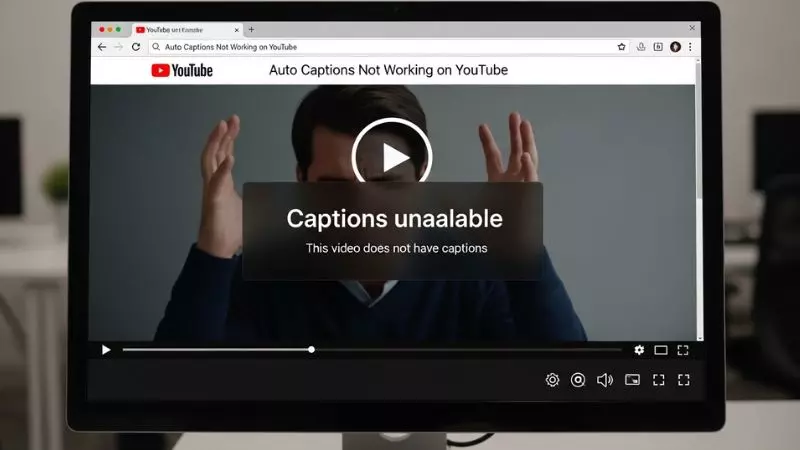
Auto captions not working YouTube is a common issue faced by creators and viewers when subtitles or automatic transcription fails to generate on videos. This problem often appears due to YouTube speech recognition errors, incorrect video settings, or disabled closed captions in YouTube Studio. Users frequently search for fixes like auto captions not showing on YouTube or YouTube subtitles not generating automatically.
In many cases, the issue is linked with language settings, poor audio quality, or processing delays inside the YouTube system. Keywords such as YouTube auto captions error, closed captions not working YouTube app, and automatic subtitles missing on videos highlight the real user intent behind this problem.
Auto Captions Not Working YouTube (Main Issue Explained)

When YouTube auto captions are not working, it usually means the platform is unable to generate or display speech-to-text subtitles for your video. This can happen due to technical, content-related, or setting issues.
Main Reasons:
- Video language not detected properly
- Low audio clarity or background noise
- Processing delay after upload
- Captions disabled in YouTube Studio settings
- Video too new (processing still ongoing)
- Region or feature limitations
Quick Fix Guide:
- Wait 24–48 hours after upload
- Check YouTube Studio > Subtitles section
- Ensure video language is selected correctly
- Improve audio clarity before uploading
Simple Troubleshooting Table:
| Problem | Reason | Solution |
| No captions generated | Video still processing | Wait 24–48 hours |
| Wrong subtitles | Language mismatch | Set correct video language |
| Missing captions option | Feature not enabled | Check YouTube Studio settings |
| Poor accuracy | Bad audio quality | Re-upload with clear audio |
YouTube Auto Generated Captions Not Working (Technical Fixes)
YouTube auto-generated captions rely on AI speech recognition. If they are not working, the issue is usually related to system processing or content quality.
Main Causes:
- Weak speech clarity or heavy accent mismatch
- No speech detected in video
- Copyrighted or reused audio blocks caption generation
- YouTube processing delay
Step-by-Step Fix:
- Open YouTube Studio
- Go to Content Section
- Click the video
- Select Subtitles Menu
- Check “Automatic Captions” status
- If missing, wait or re-upload video
Pro Tips (Teacher Insight):
- Always speak clearly and slowly in videos
- Avoid background music during speech
- Use external captions as backup (SRT file upload)
Auto Translate Captions Not Working YouTube (Language Issue Fix)

Auto translate captions allow users to watch videos in their preferred language. If this feature is not working, it is usually related to caption availability or system limitations.
👉 “For complete guide check this article“
Why Auto Translate Fails:
- Original captions are missing or disabled
- Video has no proper transcript
- Language detection failed
- Viewer settings disabled captions
- YouTube feature not supported on video type
Fix Guide:
- Ensure original captions exist first
- Enable captions in video settings
- Check language selection in player settings
- Try on desktop instead of mobile
Important Insight Table:
| Requirement | Status Needed |
| Original captions | Must exist |
| Language detection | Accurate |
| User settings | Captions enabled |
| Video format | Supported by YouTube |
YouTube Auto Translate Captions Not Working (Advanced Fix)
This issue is common when viewers try to translate captions into Urdu, Hindi, Spanish, or other languages but nothing appears.
Root Causes:
- Captions not generated in original language
- YouTube AI cannot process translation without transcript
- Browser cache issue
- App version outdated
Advanced Fix Steps:
- Clear browser cache or app cache
- Update YouTube app
- Switch device (mobile to desktop)
- Enable captions manually in settings
- Test with another video to confirm issue
Teacher Tip:
If auto translate fails, always check if the original captions exist first. Without them, translation system cannot function.
Auto Captions Not Working YouTube Reddit (Real User Issues & Insights)
Many users report caption issues on Reddit, especially creators and mobile users. These real-world complaints help us understand hidden problems.
Common Reddit User Reports:
- “Captions worked before, now missing after update”
- “Auto captions delayed for hours”
- “Mobile app captions not showing but desktop works”
- “Short videos not generating captions”
Community-Based Solutions:
- Reinstall YouTube app
- Switch between WiFi and mobile data
- Use desktop YouTube Studio for better control
- Wait for server-side fixes (very common issue)
Key Insight:
Most Reddit users confirm that caption issues are usually temporary server-side delays, not permanent errors.
Auto Captions Not Working YouTube Android

If you are facing issues like YouTube captions not working on Android, auto captions not showing, or subtitles missing after upload, this guide will help you fix everything step by step in a simple, teacher-style explanation.
This content is optimized for LSI and NLP keywords such as:
- YouTube auto captions Android issue
- captions not showing on YouTube mobile
- automatic subtitles not working
- YouTube speech to text error Android
- YouTube subtitles fix mobile
Auto Captions Not Working YouTube Android (Main Causes Explained)
When auto captions are not working on YouTube Android, it usually means the system is unable to generate or display subtitles due to app, video, or processing issues.
Main Reasons:
- Video still processing after upload
- Poor audio quality or unclear speech
- Captions disabled in YouTube Studio
- Incorrect video language settings
- YouTube app bug or outdated version
- Server-side delay from YouTube
Teacher Insight:
YouTube captions are AI-generated. If the audio is not clear or the video is new, captions may take time or fail temporarily.
Quick Problem-Solution Table:
| Issue | Cause | Fix |
| No captions visible | Processing delay | Wait 24–48 hours |
| Captions missing on Android | App glitch | Update YouTube app |
| Wrong subtitles | Wrong language set | Correct language in Studio |
| Captions not generating | Poor audio quality | Improve voice clarity |
YouTube Captions Not Working Android
If captions are not showing on your Android device, follow these practical steps.
Fix Method 1: Check App Settings
- Open YouTube app
- Play any video
- Tap 3 dots menu
- Select Captions
- Enable subtitles manually
Fix Method 2: Update YouTube App
- Go to Play Store
- Search YouTube
- Tap Update
- Restart your phone
Fix Method 3: Clear Cache
- Go to Settings
- Apps → YouTube
- Storage → Clear Cache
- Reopen app
Fix Method 4: Check Internet Connection
- Switch WiFi to mobile data
- Restart router if needed
- Try different network
Key Insight:
Most Android caption issues are caused by app cache or outdated version, not the video itself.
How to Enable Automatic Captions YouTube (Android + Studio Guide)
Many users don’t see captions because they are not enabled properly. YouTube auto captions must be activated in settings.
Enable Captions on Android (Viewer Side):
- Open video
- Tap settings (⚙️)
- Click Captions
- Select Auto-generated or English (auto)
Enable Captions in YouTube Studio (Creator Side):
- Open YouTube Studio app
- Go to Content
- Select video
- Tap Subtitles
- Check Automatic captions section
Important Notes:
- Captions only appear after processing
- Not all videos support auto captions instantly
- Language must be correctly selected before upload
How to Fix YouTube Captions Not Showing (Advanced Troubleshooting)

If captions are still not showing after enabling them, the issue may be deeper.
Advanced Fix Steps:
1. Recheck Video Language
- Open YouTube Studio
- Set correct primary language
- Save changes
2. Wait for Processing
- New videos may take 12–48 hours
- Longer videos take more time
3. Test Another Video
- Check if captions work on other videos
- Helps identify if issue is video-specific or app-related
4. Reinstall YouTube App
- Uninstall app
- Reinstall from Play Store
- Login again
5. Try Desktop Version
- Open YouTube on browser
- Check if captions appear there
Troubleshooting Table:
| Scenario | What It Means | Solution |
| Captions missing everywhere | App issue | Reinstall YouTube |
| Captions missing only one video | Processing issue | Wait or re-upload |
| Captions not translating | No original transcript | Enable auto captions first |
| Android only issue | Device bug | Clear cache or update app |
Error Loading Captions YouTube
When you see the message “Error loading captions” on YouTube, it usually means the platform is unable to fetch or display subtitle data due to technical or content-related issues.
Common Causes
- Poor internet connection or unstable network
- Disabled captions by video owner
- Corrupted cached data in browser or app
- Outdated YouTube app version
- Temporary YouTube server glitch
- Video has no available caption file
Step-by-Step Fix Guide
| Problem Area | Solution | Result |
| Internet issue | Switch WiFi or restart data | Reload captions properly |
| App cache issue | Clear YouTube cache (Android settings) | Fix corrupted caption loading |
| Outdated app | Update YouTube from Play Store | Restore caption compatibility |
| Browser issue | Clear cookies and refresh page | Fix desktop caption errors |
| Video limitation | Check if captions are available | Confirm if issue is content-based |
Advanced Fix Tips
- Disable browser extensions (especially ad blockers)
- Try Incognito mode on Chrome
- Restart device to reset temporary glitches
- Use YouTube web instead of app (or vice versa)
How to Add Subtitles to a YouTube Video That Is Not Yours
You cannot directly edit or add subtitles to someone else’s YouTube video unless the creator allows community contributions or you use external tools for personal use.
Legal & Platform Rules
- YouTube removed community captions for most channels
- Only creators or authorized editors can add subtitles
- Third-party tools can generate subtitles for learning purposes only
Practical Methods to Add Subtitles
1. Use YouTube “Auto-Translate” Feature
- Open video
- Click settings (gear icon)
- Select “Subtitles/CC”
- Choose Auto-Translate language
2. Use External Subtitle Tools
- Download video transcript (if available)
- Use tools like:
- Subtitle Edit
- Kapwing
- VEED.io
3. For Educational Use Only
- Create SRT file manually
- Sync subtitles using editing software
- Use it for offline learning or presentations
Important Note
Adding subtitles to videos you don’t own for redistribution may violate copyright policies. Always use responsibly.
YouTube Auto Translate Captions Not Working Reddit

Many users on Reddit report issues where YouTube auto translate captions stop working or show incorrect translations. This is often linked to backend language processing or account settings.
Main Reasons
- Disabled captions by uploader
- Unsupported language pair
- Temporary YouTube API bug
- Browser translation conflict
- Wrong account language settings
Reddit-Reported Fixes (Community Based Insights)
- Refresh video and reselect subtitles
- Switch language manually instead of auto-translate
- Log out and log back into YouTube account
- Clear YouTube app data or browser cache
- Try another device or browser
Best Working Fix Strategy
- Open video settings
- Turn OFF captions
- Turn ON captions again
- Select “Auto-Translate” manually
- Choose a simpler language first (e.g., English)
Pro Tip (Latest Behavior)
YouTube’s auto-translate feature works best when:
- Video has high-quality auto-generated captions
- Stable internet connection is used
- You are logged into a Google account
YouTube Auto Sync Captions Not Working
When YouTube auto sync captions are not working, subtitles appear delayed, out of timing, or mismatched with audio.
Causes
- Poor auto-generated transcript accuracy
- Fast speech or background noise in video
- Language detection error
- Device performance lag
- YouTube processing delay for new videos
Fix Methods
1. Refresh Caption System
- Turn captions OFF and ON again
- Reopen the video
2. Change Caption Type
- Switch from Auto-generated → English (or available language)
- Avoid auto-translate if sync is broken
3. Device Optimization
- Close background apps
- Clear YouTube cache
- Update device OS and app
4. Advanced Fix Table
| Issue | Fix | Effect |
| Delay in captions | Restart video | Resync audio timing |
| Wrong timing | Change language track | Better alignment |
| Glitch in playback | Lower video quality | Smooth playback sync |
Professional Tip
Auto-sync captions depend heavily on YouTube’s speech recognition engine. Videos with clear audio always generate better sync accuracy.
YouTube Automatic Captions Not Working
When YouTube automatic captions are not working, it usually means the platform is unable to generate or display auto-transcribed subtitles for the video.
Common Causes
- Video has poor or unclear audio quality
- Language is not supported for auto-captioning
- Creator disabled captions
- YouTube processing is still in progress
- Internet or app cache issue
- Copyright or restricted content blocks transcription
Step-by-Step Fix Guide
| Problem | Solution | Result |
| Captions not appearing | Check settings → Subtitles/CC ON | Enable caption display |
| App glitch | Clear YouTube cache | Fix loading issue |
| Processing delay | Wait 24–48 hours | Auto captions appear later |
| Unsupported language | Switch language manually | Improve compatibility |
| Audio issue | Use better quality video | Improve speech detection |
Pro Tip
YouTube auto captions work best when:
- Audio is clear and noise-free
- Speaker is using standard language accents
- Video is fully processed by YouTube system
How to Enable Auto Captions on YouTube
To enable auto captions on YouTube, you need to activate the “Subtitles/CC” feature and ensure the video supports automatic transcription.
Step-by-Step Method
- Open YouTube video
- Click on Settings (gear icon)
- Select Subtitles/CC
- Choose English (Auto-generated) or available language
- Confirm and play video again
Important Notes
- Auto captions only appear if YouTube has generated them
- Not all videos support captions
- Mobile and desktop settings may slightly differ
How to Auto Caption in YouTube
Many users search for how to auto caption in YouTube, especially creators who want subtitles for their videos.
For Video Creators (YouTube Studio Method)
Steps:
- Go to YouTube Studio
- Click Content
- Select your video
- Go to Subtitles tab
- Click Automatic captions (if available)
Creator Requirements
- Video must have clear spoken audio
- Language must be supported
- YouTube needs processing time after upload
If Auto Captions Are Not Generated
- Upload manual transcript file (.SRT)
- Use “Add language” option in subtitles section
- Re-upload improved audio version
Auto-Generated Captions Are Only Available for Videos with Original Audio
This message appears when YouTube cannot generate captions due to audio limitations.
Meaning Explained
YouTube only creates auto captions when:
- The video has original spoken audio
- Speech is clearly detectable
- No heavy background music interference
- No reused or muted audio segments
Why This Happens
| Reason | Explanation |
| No speech detected | Music-only or silent video |
| Poor audio quality | Speech not recognizable |
| External audio source | Voice not synced with video |
| Copyright audio | System blocks transcription |
Solution Guide
- Add clear voice narration in videos
- Avoid background noise or music overpowering speech
- Re-upload improved audio version
- Use manual subtitles for better accuracy
Pro Insight
This limitation is part of YouTube’s speech recognition system, not a bug. The platform prioritizes videos with clear original speech for generating captions.
Auto Captions Facebook Video

Facebook also provides automatic captioning, but users often face issues like missing or inaccurate subtitles.
How Facebook Auto Captions Work
- Facebook uses AI speech recognition
- Captions are generated after upload processing
- Not all languages are fully supported
How to Enable Auto Captions on Facebook
- Upload video on Facebook
- Go to Video Settings
- Enable Auto-generated captions
- Save and publish
Troubleshooting Facebook Captions
| Issue | Fix |
| Captions not showing | Turn on “Captions” in video settings |
| Wrong subtitles | Re-upload clearer audio |
| Missing language | Switch language manually |
| Processing delay | Wait for Facebook AI processing |
Pro Tip (Latest Update Insight)
Facebook captions work better when:
- You upload HD audio video
- You speak clearly in one language
- Video is not heavily edited with overlapping audio tracks
Frequently Asked Questions
Why are Auto Captions Not Working YouTube on my video?
Auto captions may not work due to poor audio quality, unsupported language, or YouTube processing delay. Ensure your video has clear original speech for speech recognition to generate subtitles.
How do I fix Auto Captions Not Working YouTube issue?
Fix it by clearing YouTube cache, updating the app, and turning captions OFF and ON again. This refreshes subtitle loading and resolves common caption errors.
Why does YouTube say auto captions are not available?
This happens when the video has no clear spoken audio or the language is not supported. YouTube only generates captions for eligible videos with detectable speech.
How long does YouTube take to generate auto captions?
YouTube usually takes a few minutes to 24 hours depending on video length and processing speed. Longer videos or new uploads may take more time.
Why are my YouTube auto captions out of sync?
Out-of-sync captions occur due to inaccurate speech detection or fast audio playback. Changing caption settings or reloading the video often fixes timing issues.
How to enable auto captions on YouTube videos?
Go to video settings, turn on Subtitles/CC, and select Auto-generated captions if available. This activates YouTube’s speech recognition subtitles.
Final Words
Auto Captions Not Working YouTube is a common issue caused by audio clarity, processing delay, or system limitations. YouTube’s AI caption system depends heavily on original spoken audio and stable processing conditions.
To avoid this issue, always upload clear voice content and allow enough time for processing. Keeping your app updated and cache clean ensures smoother caption performance and better viewing experience.

Hi, I’m Emily Carter, the mind and heart behind CaptionMood — a creative space designed to help you express your thoughts with the perfect words.
As a writer and digital content enthusiast, I’ve always believed that captions are more than just text; they’re emotions, stories, and reflections of who we are. With CaptionMood, my mission is to provide unique and engaging Mood Captions, Occasion Captions, and Social Media Captions that resonate with people from all walks of life.
Thank you for visiting and being part of this journey. Through CaptionMood, I hope to inspire, connect, and make every post more meaningful.