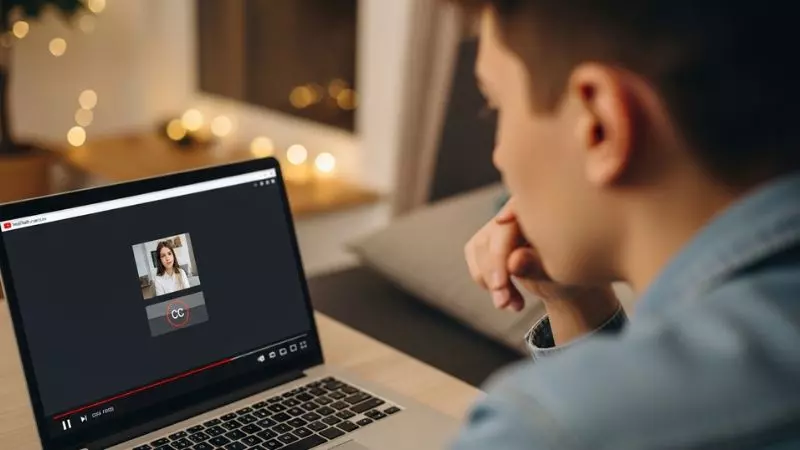
Have you ever clicked on a YouTube video only to find the captions are missing, frozen, or completely out of sync? You are not alone millions of viewers search every day asking why are YouTube captions not working, especially when they rely on subtitles for better understanding, accessibility, or learning in a noisy environment.
Whether you are dealing with YouTube subtitles not showing up, auto-generated captions disappearing, or closed captions not displaying correctly on mobile, these issues can genuinely ruin your viewing experience.
The good news is that most YouTube caption errors and subtitle glitches are fixable without any technical expertise. From outdated app versions and browser compatibility problems to incorrect playback settings and YouTube CC button not responding, there are several common reasons behind this frustrating issue.
In this guide, we will walk you through every possible cause and give you clear, step-by-step solutions to get your YouTube closed captions working again on any device, whether it is Chrome, Android, iPhone, or Smart TV.
Why Are My Captions Not Working on YouTube
If you have ever sat down to watch a YouTube video and noticed that the captions simply refuse to show up, you already know how frustrating that moment feels. You tap the CC button, nothing happens. You refresh the page, still nothing.
This is one of the most commonly reported issues across all devices in 2024 and 2025, and it affects students, professionals, hearing-impaired viewers, and everyday users alike.
The truth is, YouTube caption failure does not always mean something is seriously broken. Most of the time, it is a small setting, a temporary bug, or a device-level conflict that is quietly blocking your subtitles from loading. Understanding the root cause is the first step toward fixing it permanently.
Why Won’t Captions Work on YouTube
There are several well-documented reasons why YouTube closed captions stop working, and many users are surprised to find out the issue is not on YouTube’s end at all. Your browser, your app version, your internet speed, or even your account settings could all be responsible for this problem.
Here are the most common reasons captions fail to work on YouTube:
- Auto-generated captions are still being processed by YouTube’s AI system and are not ready yet
- Caption settings were accidentally turned off inside YouTube’s playback preferences
- Outdated YouTube app version on Android or iPhone is causing subtitle rendering issues
- Browser extensions or ad blockers are interfering with YouTube’s caption overlay system
- Slow or unstable internet connection is preventing caption files from loading properly
- YouTube server-side delays are temporarily affecting subtitle availability on new videos
- Device accessibility settings are conflicting with YouTube’s built-in caption display
If You want more information about these causes read this.
Why YouTube Captions Not Working on Chrome, Firefox and Other Browsers

Browser-based caption problems are extremely common and often go unnoticed because users assume the issue is with YouTube itself. In reality, your browser environment plays a massive role in how captions are rendered and displayed.
Step-by-step fix for browser caption issues:
- Open YouTube and play any video
- Click the CC (Closed Captions) button in the video player
- Go to Settings (gear icon) > Subtitles/CC and select your preferred language
- Clear your browser cache and cookies completely
- Disable all browser extensions one by one to identify the conflict
- Try opening the same video in an Incognito or Private window
- Update your browser to the latest available version
- If nothing works, switch to a different browser like Edge or Firefox
| Browser | Common Caption Issue | Recommended Fix |
| Google Chrome | Extensions blocking CC overlay | Disable extensions, clear cache |
| Mozilla Firefox | Caption rendering delay | Update browser, disable hardware acceleration |
| Microsoft Edge | Subtitle language mismatch | Reset YouTube playback settings |
| Safari (Mac) | CC button unresponsive | Update macOS and Safari version |
Why Are the Captions Not Working on YouTube Mobile App
Mobile users face a completely different set of caption problems compared to desktop users. The YouTube app on Android and iPhone has its own caption engine, and when that engine glitches, your subtitles vanish without any warning.
The most effective solutions for YouTube captions not working on mobile include:
- Force close the YouTube app and reopen it fresh
- Go to your phone Settings > Accessibility > Captions and make sure system-level captions are enabled
- Inside the YouTube app, tap your profile icon > Settings > Captions and confirm they are switched on
- Uninstall and reinstall the YouTube app to clear corrupted cache data
- Check if your phone’s operating system is updated to the latest version
- On Android, go to Settings > Apps > YouTube > Storage > Clear Cache
- On iPhone, go to Settings > General > iPhone Storage > YouTube > Offload App
One thing many users do not realize is that YouTube auto-captions on mobile can sometimes take up to 24 hours to appear on newly uploaded videos, especially if the video is longer than 20 minutes or contains complex audio.
What To Do If Captions Are Not Working in YouTube
This is the question most users end up asking after trying a few basic fixes that did not work. Here is a complete, teacher-approved action plan that walks you through every layer of the problem from the simplest fix to the more advanced solutions.
Think of this as your caption troubleshooting ladder. Start from Step 1 and move down only if the previous step did not solve the issue.
Step 1: Check if the video actually has captions Not every YouTube video has captions available. If the CC button is greyed out, it means the video creator did not add captions and YouTube’s auto-caption tool has not processed the video yet.
Step 2: Reset your YouTube caption preferences Go to YouTube Settings > Playback and Performance > Always show captions and toggle it off and back on again.
Step 3: Sign out and sign back into your YouTube account Sometimes your account-level settings get corrupted. Signing out and back in forces a fresh sync of all your preferences.
Step 4: Test captions on a different video Try a popular video with millions of views. If captions work there, the issue is with that specific video, not your account or device.
Step 5: Check your internet connection speed Caption files are loaded separately from the video stream. A slow connection (below 2 Mbps) can cause captions to fail even when the video plays normally.
Step 6: Update the YouTube app or browser Running an outdated version is one of the top causes of YouTube subtitle not loading errors in 2025.
Step 7: Contact YouTube Support If nothing works, visit support.google.com and report the issue directly. Include your device model, operating system, browser version, and the specific video URL.
YouTube Caption Settings You Might Be Missing
Many users do not realize that YouTube has a dedicated caption customization panel buried inside its settings. These settings control everything from font size to caption language and background color.
A misconfigured setting here can make it look like captions are broken when they are actually just invisible or set to the wrong language.
Here is what you should check inside your YouTube caption settings:
| Setting | Where to Find It | What to Check |
| Always Show Captions | YouTube > Settings > Playback | Make sure it is toggled ON |
| Caption Language | Video Player > CC > Settings > Subtitles | Select correct language |
| Caption Size and Font | YouTube > Settings > Captions | Reset to default if changed |
| Auto-generated Captions | Video Player > CC | Select “English (auto-generated)” |
| Subtitle Background | YouTube > Settings > Captions | Set opacity to visible level |
Why Do YouTube Auto-Captions Take So Long to Appear
This is one of the most misunderstood parts of the entire caption experience. When a creator uploads a new video, YouTube’s automatic speech recognition system needs time to analyze the audio and generate captions. This process is not instant.
Here is what affects how long auto-captions take to generate:
- Video length: A 5-minute video processes faster than a 2-hour documentary
- Audio quality: Clear, noise-free audio generates captions faster and more accurately
- Language complexity: English captions are generated faster than less common languages
- YouTube server load: During peak upload hours, caption processing slows down significantly
- Background music and noise: Heavy background sound confuses the AI and delays or skips caption generation entirely
If you are a content creator wondering why your own video has no captions yet, give it between 4 to 24 hours depending on video length before assuming something is broken.
How To Turn On Captions on YouTube TV and Smart TV

Smart TV users often struggle with YouTube captions not working on TV because the interface is completely different from the app or browser version. The settings are buried deeper and the CC button behavior is slightly different.
Follow these steps for Smart TV caption activation:
- Open YouTube on your Smart TV
- Start playing any video
- Press the down arrow on your remote to reveal the video controls
- Select the CC icon using your remote
- Choose your preferred caption language from the list
- If no captions appear, go to YouTube Settings > Accessibility on your TV
- Enable Closed Captions from the accessibility menu
- Restart the YouTube app on your TV and test again
If you are using YouTube TV (the live TV subscription service), captions work differently. Live captions depend on the broadcast provider and may not always be available for every channel or live event.
Why Are YouTube Captions Not Working on TV
If you have ever settled in for a movie night and found that your YouTube captions are not showing up on your Smart TV, you are dealing with one of the most common yet most overlooked streaming problems of 2025 and 2026.
Unlike a phone or laptop where fixes are quick, Smart TV caption issues require a slightly different approach because the YouTube TV app runs on a separate system with its own settings and limitations.
The biggest reason YouTube subtitles fail on Smart TV is that the caption layer does not load properly when the app has been running in the background for too long. Most Smart TVs do not fully refresh apps the way a phone does, so caption data gets stuck in a corrupted cache state without you even realizing it.
Here is exactly what you should do to fix YouTube captions on your TV:
- Press the down arrow on your remote while a video is playing to bring up the player controls
- Look for the CC or Subtitles icon and make sure it is actively selected
- Go to YouTube App Settings > Accessibility > Captions and toggle them off and back on
- Restart the YouTube app completely by closing it from your TV’s app manager
- Perform a soft reset on your Smart TV by unplugging it from the wall for 60 seconds
- Check if your TV firmware is updated because outdated firmware breaks caption rendering
- Uninstall and reinstall the YouTube app from your TV’s app store
- If using Roku, Fire Stick or Apple TV, go to the device accessibility settings and enable closed captions from there as well
| Smart TV Platform | Caption Fix Location | Key Action |
| Samsung Smart TV | Settings > General > Accessibility | Enable Caption Mode |
| LG Smart TV | Settings > Accessibility > Subtitles | Turn on Subtitle feature |
| Roku | Settings > Accessibility > Captions | Set to On Always |
| Amazon Fire Stick | Settings > Accessibility > Subtitles | Enable and set language |
| Apple TV | Settings > Accessibility > Subtitles and Captioning | Turn on Closed Captions |
| Sony Android TV | Settings > Device Preferences > Accessibility | Enable Captions |
One important thing to remember is that YouTube Live streams on TV may not always have real-time captions available because live caption generation depends on the broadcaster and YouTube’s live transcription system, which is still being improved in 2026.
YouTube Captions Not Working Android
Android users face a unique set of challenges when it comes to YouTube subtitle issues because Android devices come in hundreds of different models, screen sizes, and operating system versions, all of which interact differently with the YouTube app’s caption engine.
The most reported YouTube captions not working on Android problems in 2026 include captions that appear for a second and then disappear, captions that show in the wrong language, and the CC button being completely unresponsive even after tapping it multiple times.
Follow this step-by-step Android caption fix guide:
- Open your Android phone Settings and go to Accessibility
- Find Caption Preferences or Subtitles and make sure they are turned on at the system level
- Open the YouTube app and tap your profile picture in the top right corner
- Go to Settings > Captions and verify that captions are enabled
- Go back to Settings > Apps > YouTube > Storage
- Tap Clear Cache first, reopen YouTube and test captions
- If that does not work, tap Clear Data which will reset all app preferences
- Go to Google Play Store and make sure your YouTube app is updated to the latest version
- If the problem continues, uninstall the app completely and install it fresh from the Play Store
- Test captions on both WiFi and mobile data to rule out a network-related caption loading issue
A very common but rarely discussed cause of Android YouTube caption glitches is the battery saver or data saver mode.
When these modes are active, Android restricts background data loading, and caption files which are loaded separately from the video stream simply never download. Turning off battery saver and data saver modes while using YouTube often resolves caption issues instantly.
Additional Android-specific checks:
- Make sure Developer Options do not have any animation scale settings set to zero, as this can prevent caption overlays from appearing
- Check if any third-party keyboard or overlay app is blocking the caption layer on your screen
- On Samsung devices specifically, check if Samsung Accessibility Suite settings are conflicting with YouTube captions
YouTube Captions Not Working 2026

The year 2026 has brought some new caption-related challenges that did not exist in previous years, mainly because YouTube has been rolling out significant updates to its automatic caption generation system powered by Google’s latest AI speech recognition models.
While these updates have improved caption accuracy overall, they have also introduced new compatibility issues for older devices and browsers.
Here is what is specifically causing YouTube caption failures in 2026:
New in 2026: YouTube Caption Changes You Need to Know
- YouTube has started migrating from its older WebVTT caption format to a newer dynamic caption rendering system, and not all browsers and apps have been updated to support it yet
- YouTube’s AI auto-caption system now generates captions in over 17 languages automatically, but the increased processing demand means captions on newly uploaded videos can take longer to appear
- The YouTube mobile app received a major UI overhaul in early 2026 and several users reported that their caption settings were reset to default after the update
- YouTube TV has introduced real-time AI captions for live content but this feature is still in beta and frequently fails on older Smart TV models
Common 2026 YouTube caption error scenarios and their fixes:
| Error Scenario | Most Likely Cause in 2026 | Quick Fix |
| Captions disappear after a few seconds | New caption rendering engine bug | Update YouTube app immediately |
| CC button is greyed out on new videos | AI caption processing still in progress | Wait 2 to 6 hours and retry |
| Captions show in wrong language | 2026 auto-language detection glitch | Manually select language in CC settings |
| Captions work on desktop but not mobile | App not updated to 2026 version | Update app from Play Store or App Store |
| Live stream captions not available | Beta AI caption feature limitation | Use desktop browser for live caption access |
The most important advice for 2026 is to keep your YouTube app, browser, and device operating system updated at all times because the caption system now relies heavily on cloud-based processing that requires the latest client software to function correctly.
Error Loading Captions YouTube
The “Error Loading Captions” message on YouTube is one of those errors that feels vague and unhelpful, but it actually tells you something very specific. It means that YouTube successfully identified that a caption file exists for that video, but it could not retrieve or load that file onto your screen. This is different from a video having no captions at all.
Think of it this way. The video itself is like a meal served at a restaurant and the captions are the menu card that comes with it. The food arrived but the menu card got lost somewhere between the kitchen and your table. The caption file exists, it just never made it to your screen.
Why the “Error Loading Captions” message appears:
- Your internet connection dropped briefly exactly when the caption file was being fetched
- The caption file on YouTube’s server is temporarily corrupted or unavailable
- A browser extension or VPN intercepted and blocked the caption file request
- Your browser’s cache has a corrupted version of the caption file stored from a previous session
- The video was recently re-uploaded or edited by the creator, causing the caption file link to break temporarily
- YouTube’s CDN (Content Delivery Network) server closest to your location is experiencing issues
Complete fix guide for “Error Loading Captions” on YouTube:
- Refresh the video page and wait for it to fully reload before clicking play
- Clear your browser cache and cookies completely and then reopen YouTube
- Disable your VPN if you are using one, as VPNs frequently cause caption CDN errors
- Open the video in a private or incognito browser window to bypass cached data
- Try the video on a different browser to confirm if the issue is browser-specific
- Switch your internet connection from WiFi to mobile data or vice versa
- Try accessing the same video from the YouTube mobile app instead of the browser
- If the error appears on a specific video only, check back after a few hours as YouTube often fixes caption file errors automatically on their server side
- Report the specific video to YouTube using the three-dot menu > Report option so their team can investigate the broken caption file
The “Error Loading Captions” problem is usually temporary and resolves itself within a few hours if the cause is on YouTube’s server side.
However, if you see this error consistently across multiple videos and multiple devices, the issue is almost certainly your internet connection or network firewall settings blocking YouTube’s caption servers.
YouTube Captions Not Working Reddit
If you have ever searched for help with YouTube caption problems and ended up on Reddit, you already know that thousands of users report the exact same issues every week across subreddits like r/youtube, r/techsupport, r/androidquestions, and r/google.
Reddit has become one of the most valuable real-world databases for understanding which caption fixes actually work versus which ones are just copy-pasted advice that does not help anyone.
Here is what the Reddit community has consistently identified as the most effective solutions that actually work in real-world testing:
Top Reddit-verified fixes for YouTube captions not working:
- The most upvoted fix across r/youtube threads is simply signing out of your Google account on YouTube and signing back in, which forces a complete refresh of all caption and playback settings stored in your account
- Reddit users on r/techsupport consistently report that disabling hardware acceleration in Chrome fixes caption display issues on desktop, you can find this under Chrome Settings > System > Use hardware acceleration when available
- Multiple r/androidquestions threads confirm that clearing the YouTube app cache every few weeks prevents caption errors from building up over time
- Users on r/youtube discovered that if you go to YouTube.com/account_playback and reset all playback settings, caption issues tied to corrupted account preferences disappear immediately
- A widely shared tip from r/google confirms that YouTube captions work more reliably when you are fully signed into your Google account rather than watching as a guest or in incognito mode
Most frequently asked YouTube caption questions on Reddit in 2026:
| Reddit Question | Community Verified Answer |
| Why do captions vanish after a second? | YouTube app needs update or cache needs clearing |
| Captions work on PC but not phone | Mobile app version is outdated or cache is corrupted |
| Auto captions not available on new video | YouTube AI still processing, wait up to 24 hours |
| Captions in wrong language on my TV | Go to CC settings and manually select your language |
| Error loading captions on every video | VPN or browser extension is blocking caption files |
| CC button greyed out on some videos | Creator disabled captions or video is still being processed |
What makes Reddit uniquely valuable for this kind of problem is that real users share their exact device, browser version, and operating system when reporting fixes. This means the solutions are tested across actual hardware rather than being generic advice.
If you are dealing with a very specific caption issue that none of the standard fixes resolve, searching your exact problem in Reddit with the current year added to your search query will almost always surface someone who has already found a working solution.
YouTube Auto Generated Subtitles Not Working
YouTube’s auto-generated subtitle system is powered by Google’s advanced AI speech recognition technology, and while it has improved dramatically over the years, it is still one of the most frequently reported problem areas in 2026.
When your YouTube automatic captions stop working, it does not always mean the feature is broken. In most cases, there is a very specific and fixable reason behind it that most users never think to check.
Auto-generated subtitles work differently from manually added captions. Instead of a pre-made subtitle file uploaded by the creator, YouTube’s AI listens to the video audio in real time after upload and generates a transcript automatically.
This process takes time, requires clear audio, and depends on several technical conditions being met simultaneously.
The most common reasons YouTube auto-generated subtitles stop working:
- The video was uploaded very recently and YouTube’s AI has not finished processing the audio yet
- The video contains heavy background music, multiple speakers, or strong accents that confuse the speech recognition engine
- The video creator has manually disabled auto-captions in their YouTube Studio settings
- Your YouTube account language settings do not match the language being spoken in the video
- The video is a live stream or premiere where auto-captions behave differently from regular uploaded videos
- YouTube’s auto-caption system does not support the language being spoken in the video
- A recent YouTube app or browser update has temporarily disrupted the auto-caption rendering pipeline
Step-by-step fix for YouTube auto-generated subtitles not working:
- Open the video and click the CC button in the player controls
- Click the Settings gear icon next to the CC button
- Select Subtitles/CC from the menu
- Look for an option labeled “English (auto-generated)” and select it manually
- If that option is not there, the video either has no auto-captions yet or the creator disabled them
- Go to your YouTube account settings and confirm your preferred language is set correctly
- Refresh the page or restart the app and check again after a few minutes
- Try the same video on a different device to confirm if the issue is device-specific
How long do YouTube auto-captions take to generate:
| Video Length | Estimated Caption Processing Time |
| Under 5 minutes | 15 to 45 minutes |
| 5 to 20 minutes | 1 to 3 hours |
| 20 to 60 minutes | 3 to 8 hours |
| Over 60 minutes | 8 to 24 hours |
| Live streams | Available within 1 to 2 hours after stream ends |
One thing that most users never realize is that YouTube does not guarantee auto-captions for every video. If the audio quality is too low, the language is not supported, or the creator has opted out of auto-captioning in their channel settings, the CC button will simply remain greyed out with no explanation given to the viewer.
Pro tip for content creators: If your own video is not getting auto-captions generated, go to YouTube Studio > Subtitles and check if the auto-caption option is available.
If it shows as processing for more than 24 hours, delete the video, check your audio quality, and re-upload with cleaner audio. YouTube’s AI responds significantly better to audio that has minimal background noise and a clear single speaking voice.
Why Subtitles Are Not Working on Netflix

Netflix subtitle problems are just as frustrating as YouTube caption issues, but they come from a completely different technical system. While YouTube generates captions automatically using AI, Netflix subtitles are pre-made files that are stored on Netflix’s servers and streamed alongside your video. When these files fail to load, the experience breaks in a very noticeable and annoying way.
Understanding why Netflix subtitles stop working requires looking at three separate layers: your device settings, the Netflix app itself, and Netflix’s content delivery system. Most users only check one layer and give up when the first fix does not work.
Why Netflix subtitles fail to work on different devices:
- Your Netflix app is outdated and the subtitle rendering engine is incompatible with newer content formats
- The subtitle language file for your selected language is temporarily unavailable on Netflix’s server
- Your device’s accessibility or caption settings are overriding Netflix’s built-in subtitle display
- A weak internet connection is preventing the subtitle file from downloading alongside the video stream
- You are using a downloaded title for offline viewing and the subtitle file was not included in the download
- Your Netflix profile subtitle settings were reset after a recent app update
- The specific TV show or movie you are watching has a subtitle error on Netflix’s end that affects all users
Complete fix guide for Netflix subtitles not working:
- While watching, pause the video and tap the dialogue bubble or speech icon in the player
- Select your preferred subtitle language and confirm the selection
- If no subtitles appear, exit the video completely and go back to the Netflix home screen
- Go to Netflix App Settings > Audio and Subtitles and reset your preferences
- Sign out of your Netflix account completely and sign back in
- Clear the Netflix app cache on Android by going to Settings > Apps > Netflix > Storage > Clear Cache
- On iPhone, delete and reinstall the Netflix app entirely
- Check if subtitles work on a different title to confirm if the issue is content-specific or app-specific
- Try watching on the Netflix website in your browser to bypass the app completely
- Update the Netflix app to the latest version from your device’s app store
Netflix subtitle issues by device:
| Device | Most Common Subtitle Issue | Best Fix |
| Android Phone | Subtitles reset after app update | Clear cache and reset subtitle preferences |
| iPhone or iPad | Subtitle option greyed out | Reinstall Netflix app and re-select language |
| Smart TV | Subtitles not available for some content | Update TV firmware and Netflix app |
| Web Browser | Subtitles lag behind video | Clear browser cache and disable extensions |
| Amazon Fire Stick | Subtitles appear in wrong language | Reset Netflix profile subtitle settings |
| PlayStation or Xbox | No subtitle option in player | Check accessibility settings in console menu |
One important distinction that many Netflix users miss is the difference between subtitles and dubbing. Netflix offers both dubbed audio and subtitle tracks for foreign language content, and they are separate options.
If you selected a dubbed audio track in a language different from your subtitle language, the two may conflict and cause one or both to fail. Always make sure your audio language and subtitle language are selected independently in the Netflix audio and subtitle menu.
For Netflix downloaded content specifically, subtitles must be downloaded along with the video. If you downloaded a title without subtitles and are now watching offline, go back online, delete the download, and re-download the title after selecting your preferred subtitle language in the title’s audio and subtitle settings before downloading.
Error Loading Captions YouTube iPhone
iPhone users encountering the “Error Loading Captions” message on YouTube are dealing with a problem that sits right at the intersection of iOS system settings, the YouTube app architecture, and Apple’s own accessibility framework.
This specific error on iPhone is more complex than the same error on Android or desktop because iOS handles network requests and app permissions in a fundamentally different way.
When you see error loading captions on YouTube on your iPhone, the app is telling you that it found a caption track for the video but failed to retrieve the actual caption data file. This failure can happen at multiple points in the request chain, from your iPhone’s network layer all the way to YouTube’s caption content delivery servers.
Why “Error Loading Captions” specifically happens on iPhone:
- iOS Low Data Mode is restricting the separate network request that YouTube makes to fetch caption files
- Your iPhone’s VPN or DNS settings are blocking YouTube’s caption server endpoints
- The YouTube app cache on your iPhone contains corrupted caption data from a previous session
- A recent iOS update changed network permission handling and the YouTube app has not been updated to match
- iCloud Private Relay (available on iCloud Plus subscribers) is routing YouTube’s caption requests through Apple’s privacy relay servers which sometimes block or delay caption file delivery
- The YouTube app version on your iPhone is outdated and incompatible with YouTube’s latest caption format
- Your iPhone’s date and time settings are incorrect which can cause SSL certificate failures when loading caption files
Complete step-by-step fix for error loading captions on YouTube iPhone:
- Force close the YouTube app by swiping up from the bottom of your screen and swiping the YouTube card away
- Reopen YouTube and test the same video immediately
- Go to iPhone Settings > YouTube and make sure the app has permission for Cellular Data and Background App Refresh
- Go to iPhone Settings > Cellular > Low Data Mode and turn it off while using YouTube
- If you use iCloud Private Relay, go to Settings > Apple ID > iCloud > Private Relay and temporarily disable it
- Go to iPhone Settings > General > VPN and Device Management and disconnect any active VPN
- Go to iPhone Settings > Safari and clear history and website data, then try YouTube in Safari browser instead of the app
- Inside the YouTube app, go to your profile icon > Settings > Clear Search History and also sign out and sign back in
- Go to iPhone Settings > General > iPhone Storage > YouTube and tap Offload App, then reinstall it from the App Store
- Go to iPhone Settings > General > Date and Time and make sure Set Automatically is turned on
iPhone-specific caption error scenarios:
| iPhone Setting Causing Caption Error | Where to Find It | How to Fix It |
| Low Data Mode enabled | Settings > Cellular or WiFi | Turn off Low Data Mode |
| iCloud Private Relay active | Settings > Apple ID > iCloud | Temporarily disable Private Relay |
| VPN blocking caption servers | Settings > VPN and Device Management | Disconnect VPN while watching |
| YouTube app not updated | App Store > Updates | Update to latest YouTube version |
| Background App Refresh off | Settings > General > Background App Refresh | Enable for YouTube |
| Incorrect date and time | Settings > General > Date and Time | Enable Set Automatically |
After applying these fixes, always test captions on at least three different videos including a very popular video with millions of views to confirm the fix worked consistently. If captions work on popular videos but fail on specific videos, the issue is with that particular video’s caption file on YouTube’s end and not your iPhone at all.
Why Are Captions Not Working on YouTube TV
YouTube TV is a completely separate product from the regular YouTube app, and this distinction is the reason why so many users get confused when their captions fail. YouTube TV is a live television streaming service that carries broadcast channels, cable networks, and sports content.
The caption system it uses is fundamentally different from the on-demand caption system used by regular YouTube videos, and understanding this difference is the key to fixing your problem.
On regular YouTube, captions are either auto-generated by AI or uploaded manually by creators as separate text files. On YouTube TV, captions come directly from the broadcast signal of the TV channel you are watching, just like traditional cable television.
This means YouTube TV is entirely dependent on the broadcaster sending a proper caption signal, and if that signal is missing or corrupted, YouTube TV cannot create captions on its own.
Why captions specifically fail on YouTube TV:
- The TV channel you are watching did not include a caption signal in their broadcast at that moment
- You are watching a live sports event or breaking news where the broadcast captioning system is running behind or failing
- Your YouTube TV app is outdated and cannot properly decode the caption data embedded in the broadcast stream
- The device you are using to watch YouTube TV has an accessibility setting conflict with the caption overlay system
- You are watching a recorded DVR program and the caption data was not saved properly during the recording
- Your internet connection speed dropped during a live broadcast which caused the caption buffer to fail
- The specific regional broadcast affiliate you are receiving has a known captioning issue that affects all viewers in your area
Full fix guide for YouTube TV captions not working:
- While watching YouTube TV, click or tap the three-dot menu in the player controls
- Select Captions or Subtitles from the menu and choose your language
- If captions are available but not showing, exit the channel and re-enter it to refresh the broadcast stream
- Close the YouTube TV app completely and reopen it on your device
- Check if captions work on a different channel to determine if the issue is channel-specific or app-wide
- For DVR recordings, delete the recording and re-record the program if it airs again to get a clean caption track
- Update your YouTube TV app to the latest available version on your device
- On Smart TV, perform a complete app restart from the TV’s application manager
- Check your internet connection speed and make sure you are getting at least 25 Mbps for reliable YouTube TV streaming with captions
- Contact YouTube TV Support directly if a specific channel consistently has no captions, as this may be a broadcaster-level issue they need to escalate
YouTube TV caption availability by content type:
| Content Type on YouTube TV | Caption Availability | Notes |
| Major broadcast networks (ABC, NBC, CBS) | Almost always available | Captions come from broadcast signal |
| Cable news channels (CNN, Fox News) | Usually available | May lag during breaking live coverage |
| Live sports events | Inconsistent | Depends on sports broadcaster captioning |
| DVR recorded programs | Usually available | Depends on original broadcast quality |
| YouTube TV original content | Always available | Pre-made caption files included |
| Local affiliate channels | Varies by region | Some local affiliates have weak caption signals |
The most important thing to understand about YouTube TV captions is that YouTube itself has limited control over them for live content. If your local NBC affiliate is broadcasting without a proper caption signal tonight, YouTube TV cannot fix that in real time.
However, if you are consistently experiencing missing captions across multiple major channels, the problem is almost certainly on your device or app side and the fixes listed above will resolve it.
One final tip that most YouTube TV users never discover: You can go to YouTubeTV.com in your desktop browser and watch the same live channel there.
If captions work in the browser but not on your TV app, the problem is definitely the app or device, not the broadcast signal. This simple test saves a lot of troubleshooting time and points you directly toward the right fix.
Why YouTube Captions Not Available

Finding a video you genuinely want to watch and then discovering that the YouTube captions are simply not available is one of the most frustrating experiences on the platform, especially if you depend on subtitles for accessibility, language learning, or watching in a noise-sensitive environment.
The greyed-out CC button with no clickable options is YouTube’s way of telling you that no caption track exists for that video at that moment, but it never explains why.
Understanding the real reasons behind YouTube captions not being available requires looking at how the entire caption ecosystem works from the creator side all the way to the viewer side.
Most viewers assume it is always a technical glitch, but in reality, the majority of cases come down to deliberate decisions made by creators or specific limitations of YouTube’s auto-caption system.
The most common reasons why YouTube captions are not available:
- The video creator manually disabled auto-generated captions in their YouTube Studio settings, which permanently prevents captions from appearing for all viewers
- The video was uploaded within the last few hours and YouTube’s AI speech recognition system has not finished generating the automatic caption track yet
- The spoken language in the video is not supported by YouTube’s auto-caption system, which currently supports around 17 languages and leaves hundreds of others without any automatic captioning
- The video contains mostly music, sound effects, or non-speech audio which gives YouTube’s AI nothing to transcribe into captions
- The video is age-restricted or set to private and YouTube limits caption processing for certain restricted content categories
- The creator uploaded the video using a third-party scheduling tool that bypassed YouTube’s standard upload process, sometimes causing caption generation to be skipped entirely
- The video is extremely short, under 30 seconds, and YouTube’s system deprioritizes caption generation for very short content
- The channel is brand new with very few subscribers and YouTube’s caption processing queue prioritizes established channels during high server load periods
What you can do when YouTube captions are not available:
- Click the CC button in the video player and check if any language option appears, even if it is not your preferred language
- Go to the video settings gear icon > Subtitles/CC and look specifically for an “(auto-generated)” option
- If the video has a transcript available, click the three-dot menu below the video and select Show Transcript to read along manually
- Use a browser extension like YouTube Transcript or SubtitlesForYouTube that can generate third-party captions for videos that lack them
- Copy the video URL and paste it into downsub.com or savesubs.com to check if any subtitle file exists for that video in any language
- Leave a comment on the video politely requesting the creator to add captions, many creators do respond to accessibility requests
- If you are a creator yourself and your video has no captions, go to YouTube Studio > Subtitles and manually add captions using YouTube’s built-in caption editor
YouTube auto-caption language support status:
| Language | Auto-Caption Support | Notes |
| English | Full support | Highest accuracy rate |
| Spanish | Full support | Available for most videos |
| French | Full support | Good accuracy on clear audio |
| German | Full support | Works well on standard speech |
| Hindi | Partial support | Improving but still inconsistent |
| Arabic | Partial support | Right-to-left display sometimes glitches |
| Urdu | Limited support | Often misidentified as Hindi |
| Regional dialects | Very limited | Often fails or generates wrong language |
The most empowering thing you can do as a viewer facing unavailable captions is to use YouTube’s Community Contributions feature if it is enabled on the channel, which allows viewers to submit their own caption tracks for videos.
While YouTube scaled back this feature in 2020, some channels still have it enabled and actively welcome community-submitted captions from multilingual viewers around the world.
Why Is YouTube Not Working in Pakistan
If you are in Pakistan and trying to access YouTube only to find it completely blocked or inaccessible, you are experiencing one of the most well-documented cases of government-ordered internet censorship in South Asian digital history.
Pakistan has had a deeply complicated and troubled relationship with YouTube that goes back over a decade, and understanding this history helps explain why the platform continues to face access issues in Pakistan even today in 2026.
Why Is YouTube Showing Captions
If YouTube is suddenly showing captions automatically on videos when you never turned them on, or if captions are appearing on every video without you clicking the CC button, you are experiencing one of the most commonly misunderstood YouTube behaviors that confuses millions of users every year.
The good news is that this is completely fixable and takes less than two minutes once you know exactly where the setting is hiding.
YouTube has a feature called “Always Show Captions” which, when enabled either deliberately or accidentally, forces captions to display on every single video you watch regardless of whether the creator added them or not.
This setting can be switched on without users realizing it, especially after a YouTube app update that resets preferences or when someone else uses your YouTube account on a shared device.
Why YouTube is showing captions automatically on every video:
- The “Always Show Captions” setting in your YouTube account preferences is turned on
- Someone else used your YouTube account on a shared device and enabled captions for their own viewing
- A recent YouTube app update reset your caption preferences to a default that includes auto-captions
- Your device’s accessibility settings have captions enabled at the system level which YouTube respects automatically
- You are signed into a Google account that previously had captions enabled on a different device
- A keyboard shortcut was accidentally pressed while watching a video, the letter C on a keyboard toggles captions on and off in YouTube’s desktop player
- Your YouTube profile is set to a language that YouTube is automatically captioning for language assistance purposes
How to turn off automatic captions on YouTube:
On Desktop Browser:
- Click your profile picture in the top right corner of YouTube
- Select Settings from the dropdown menu
- Click on Playback and Performance in the left sidebar
- Find the option “Always show captions” and toggle it completely off
- Also uncheck “Include auto-generated captions” if it is checked below the first option
- Refresh YouTube and test on any video
On YouTube Mobile App:
- Tap your profile picture in the top right corner
- Go to Settings > Captions
- Toggle “Always Show Captions” to the off position
- Go back and test on any video immediately
On Smart TV:
- Open YouTube and go to Settings from the main menu
- Find Accessibility or Caption Settings
- Disable the always-on caption option
- Restart the YouTube app to apply the change
On iPhone with iOS Accessibility:
- Go to iPhone Settings > Accessibility > Subtitles and Captioning
- If “Closed Captions and SDH” is turned on at the iOS level, YouTube will show captions on every video automatically
- Toggle this setting off and return to YouTube to confirm captions no longer appear automatically
YouTube caption display settings explained:
| Setting Name | Location | What It Does |
| Always Show Captions | YouTube Settings > Playback | Forces captions on every video |
| Include Auto-Generated Captions | YouTube Settings > Playback | Shows AI captions even on uncaptioned videos |
| Caption Language | Video Player > CC > Settings | Sets which language captions display in |
| Caption Size and Style | YouTube Settings > Captions | Controls how captions look visually |
| iOS Closed Captions and SDH | iPhone Settings > Accessibility | Overrides YouTube and shows captions everywhere |
| Android Caption Preferences | Phone Settings > Accessibility | System-level caption control for all apps |
One thing that surprises many users is that YouTube’s caption setting is tied to your Google account, not just your device. This means if you turn on captions on your phone and then open YouTube on your laptop while signed into the same account, captions will automatically appear there too.
If you are seeing captions on a device where you never enabled them, always check your account-level settings first before looking at device settings, because the account setting will always override the device setting when you are signed in.
Frequently Asked Questions
Why Are YouTube Captions Not Working on My Video Right Now?
YouTube captions stop working when the auto-generated subtitle file has not finished processing, or when the creator has manually disabled closed captions inside YouTube Studio settings.
Why Are YouTube Captions Not Showing Up on My Phone?
YouTube captions fail to appear on mobile devices when the in-app caption setting is turned off, the YouTube app cache is corrupted, or the application is running on an outdated version that cannot render subtitle overlays correctly.
Why Does the CC Button Not Work on YouTube Videos?
The YouTube CC button becomes unresponsive or greyed out when no caption track exists for that specific video, or when a browser extension, VPN, or slow internet connection is blocking the caption file from loading properly.
Why Are YouTube Auto Captions Not Available for My Uploaded Video?
YouTube auto-generated captions are not available when the video audio quality is too low for speech recognition, the spoken language is unsupported by YouTube’s AI system, or the caption processing queue is still running in the background after a recent upload.
Why Are YouTube Captions Not Working After the Latest Update?
YouTube captions stop working after an update because the new app version resets saved caption preferences, introduces temporary rendering bugs, or creates compatibility conflicts between the updated caption engine and your current device operating system.
Why Are My YouTube Captions Not Working on Smart TV?
YouTube captions fail on Smart TV when the television firmware is outdated, the YouTube app has not been updated to the latest version, or the broadcast caption signal from a live channel is missing or too weak to display subtitle text on screen.
Final Words
Why are YouTube captions not working is a question that millions of viewers ask every single day across every device, browser, and platform imaginable. The truth is that YouTube caption problems rarely come from one single cause.
They can be triggered by outdated apps, corrupted cache files, incorrect account settings, unsupported languages, weak internet connections, or even decisions made by the video creator inside YouTube Studio. Every layer of the system plays a role in whether your subtitles load correctly or silently fail without any explanation.
The best approach to permanently solving why are YouTube captions not working on your device is to treat it as a step-by-step diagnostic process rather than a random guessing game. Start with the simplest fixes like clearing your cache and updating your app, then move toward account-level settings, device accessibility options, and network configuration checks.
Once you understand exactly where the caption system breaks down for your specific device and connection, fixing it becomes straightforward and the frustrating greyed-out CC button becomes a problem you will rarely encounter again.

Hi, I’m Emily Carter, the mind and heart behind CaptionMood — a creative space designed to help you express your thoughts with the perfect words.
As a writer and digital content enthusiast, I’ve always believed that captions are more than just text; they’re emotions, stories, and reflections of who we are. With CaptionMood, my mission is to provide unique and engaging Mood Captions, Occasion Captions, and Social Media Captions that resonate with people from all walks of life.
Thank you for visiting and being part of this journey. Through CaptionMood, I hope to inspire, connect, and make every post more meaningful.